
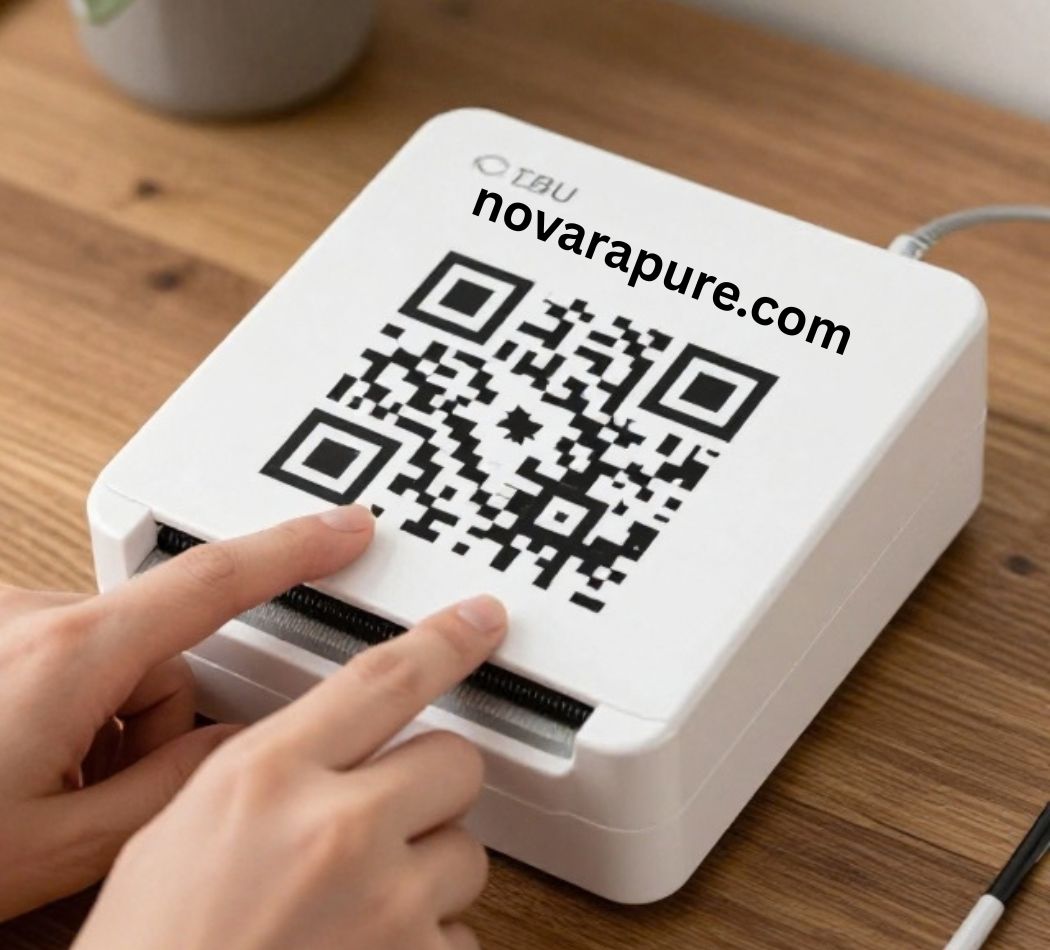
We Tested:
Imagine this: You have just approved a print run of 10,000 flyers. The design looks clean. The QR code sits neatly in the corner, linking to your new landing page. Then the flyers arrive. Customers try to scan. Nothing happens. Some phones open the camera and hesitate. Others simply do not recognize the code. You have spent money on printing, shipping, and design — and the one interactive element that was supposed to connect print to digital is dead on arrival.
This is not a rare horror story. It happens every day. Industry research cited by VistaPrint suggests that more than 100 million Americans will scan a QR code this year, and those users expect the experience to be instant. Yet countless printed QR codes fail because of preventable mistakes: too small, too low-resolution, too little contrast, or no quiet zone.
The good news is that QR code printing is not complicated once you understand the rules. In this guide, you will learn exactly how to print QR codes that scan reliably — from sizing and resolution to materials, error correction, and the latest 2026 trends. Whether you are a beginner putting a code on a business card or a professional printing labels at scale, this article will help you get it right the first time.
Background: From Auto Parts to Everyday Print
The QR code was invented in 1994 by Masahiro Hara at Denso Wave, a Japanese automotive company. The goal was simple: track parts faster and more accurately than traditional barcodes allowed. Hara’s square design could store up to 7,089 numeric characters — far more than the 13 digits of a standard barcode.
What started as an industrial tool became a global communication bridge. During the COVID-19 pandemic, QR codes exploded: restaurants used them for digital menus, governments for health passes, and retailers for contactless payments. One industry report noted a 43% increase in QR code creation in 2023 alone.
By 2026, QR codes are everywhere: product packaging, museum exhibits, business cards, billboards, and event tickets. The rise of GS1 Digital Link QR codes — which combine product information, traceability, and consumer engagement — is transforming retail and packaging. In Europe, Digital Product Passports are pushing QR codes into the heart of sustainability regulation. In short, printing QR codes correctly is no longer a nice-to-have skill. It is a core part of modern print production.
The Core of QR Code Printing: What Really Matters
Size: The 10-to-1 Rule
The most common mistake in QR code printing is making the code too small. The Nielsen Norman Group recommends a minimum size of 2 x 2 cm for reliable scanning at close range. But that is only the absolute minimum.
The practical rule is simple: the farther away the scan, the larger the code. Use the 10-to-1 rule: add 1 cm of width for every 10 cm of scanning distance. A code scanned from 50 cm should be at least 5 cm wide. A poster scanned from 3 meters needs a code around 30 cm wide.
| Use Case | Typical Scan Distance | Minimum Size | Error Correction |
|---|---|---|---|
| Business card | ~10 cm (handheld) | 2 cm | M |
| Product label | Close range | 2 cm | Q |
| Flyer or brochure | ~30 cm | 3 cm | M |
| Table tent | ~50 cm | 5 cm | M |
| Poster | 1–3 m | 10–30 cm | M |
| Billboard | Far distance | ~30 cm per 3 m | L to H |
Source: Scanova sizing guidelines, 2026.
Resolution and File Format: Vector vs. Raster
A QR code that looks sharp on your screen can become blurry when printed. The reason is resolution. For standard print work, use at least 300 DPI (dots per inch). For small QR codes on business cards or labels, aim for 600 DPI or higher.
The best results come from vector files such as SVG or EPS. Vectors store the code as mathematical instructions, not pixels, so they stay perfectly sharp at any size. For professional printing — flyers, banners, packaging — SVG is the gold standard.
If you must use a raster format like PNG, choose at least 1000 pixels per side, or ideally 1200 x 1200 pixels. That covers most applications up to a 100 mm sticker.
Error Correction: Your Built-In Safety Net
QR codes use Reed-Solomon error correction. There are four levels:
-
Level L (Low): recovers about 7% damage
-
Level M (Medium): recovers about 15% damage — the default for most uses
-
Level Q (Quartile): recovers about 25% damage
-
Level H (High): recovers about 30% damage
For most printed QR codes, Level M is enough. If you add a logo in the center, or print on a rough or glossy surface, use Level Q or H. Higher error correction makes the pattern denser, which can be a problem at very small sizes. The goal is balance.
The Quiet Zone: Why White Space Is Critical
Every QR code needs a quiet zone — an empty margin around the code. The specification requires at least four modules wide on all sides. In practice, that means leaving a white border that is at least four times the width of the smallest module in the code. If the code is 2 cm wide with 0.5 mm modules, you need a 2 mm margin on every side. Without the quiet zone, scanners cannot detect the code reliably.
Contrast: Dark on Light Still Wins
QR scanners detect contrast between adjacent modules. Aim for a contrast difference of at least 40% between the dark and light areas. Black on white remains the most reliable. Dark blue on white or dark green on light yellow also works. Avoid light foregrounds on dark backgrounds — inverted codes often fail. Also avoid gradients and patterned backgrounds, which can reduce consistency.
Practical Tips: Step-by-Step to a Perfect QR Code
Step 1: Choose Static or Dynamic
A static QR code stores the destination directly in the pattern. It cannot be changed after printing. Use it for permanent information like a homepage link or a vCard.
A dynamic QR code points to a short URL hosted on a server. You can change the destination anytime, even after printing thousands of copies. Dynamic codes also provide scan analytics — how many people scanned, from which device, and when.
Rule of thumb: Use dynamic for anything you might want to update or measure. Use static for one-off Wi-Fi codes or private contact cards.
Step 2: Generate with the Right Settings
Use a trusted QR generator and check these settings:
-
Error correction: M for standard, Q or H with logos or rough surfaces
-
File format: SVG or EPS for print, PNG (1000+ px) for digital
-
Contrast: dark foreground on light background
-
Logo: cover no more than 20% of the total area, centered
-
Quiet zone: at least four modules around the code
Step 3: Test Before You Print
This is the step most people skip. Test the QR code on at least two or three different phones, in different lighting conditions. Print a test copy at the actual size and scan it from the expected distance. A code that works on your screen does not automatically work on paper.
Step 4: Choose the Right Material
The material affects both scanability and durability. For indoor use, standard paper or cardstock is fine. For outdoor or damp environments, choose PVC, vinyl, or even engraved metal. Glossy materials can reflect light and reduce scanability — matte finishes are safer.
Step 5: Print with the Right Settings
Make sure your printer delivers at least 300 DPI. For small codes on business cards or labels, 600 DPI is recommended. Avoid cheap ink that can bleed — it blurs the modules. For professional printing, supply the vector file and ask for a proof at the actual size.
Common Mistakes and How to Fix Them
Mistake 1: The Code Is Too Small
Problem: The code is under 2 cm and scanned from a distance.
Fix: Increase the size. Remember that size also depends on data complexity. A short URL creates a simpler pattern that remains scannable at smaller sizes. Use a short dynamic link instead of a long tracking URL.
Mistake 2: Poor Contrast
Problem: The colors are too close, or the code sits on a dark background.
Fix: Use dark modules on a light background. Test contrast before printing. For colored backgrounds, aim for at least 60% contrast difference.
Mistake 3: Ignoring the Quiet Zone
Problem: Text, logos, or images touch the QR code or come too close.
Fix: Leave a clear margin of at least four modules around the code. Do not place the code too close to the paper edge, where trimming can damage it.
Mistake 4: Wrong Data or Broken Links
Problem: The URL is misspelled or points to a non-existent page.
Fix: Always test the link before printing. For dynamic codes, verify the redirect works. A broken link wastes your print budget and damages trust.
Mistake 5: Glossy Material or Distortion
Problem: The code is on a shiny surface or a curved object, causing glare or distortion.
Fix: Choose matte materials. On curved surfaces like mugs or pens, keep the code on a flatter area. A smaller code on a flat section works better than a large code that bends.
Pros, Cons, and Balanced Analysis
Pros of Printing QR Codes
-
Seamless bridge between print and digital: QR codes make any printed item interactive, from flyers to packaging.
-
Cost-effective: Adding a QR code to existing print work costs almost nothing extra.
-
Measurable: Dynamic QR codes provide detailed scan analytics, helping you optimize campaigns.
-
Versatile: From business cards to billboards, QR codes work on almost any surface.
Cons and Challenges
-
Technology-dependent: Users need a smartphone with a camera and internet access.
-
Fragile scanability: Small errors in size, contrast, or resolution can make the code unusable.
-
Consumer distrust: Some users hesitate to scan QR codes due to phishing or malware concerns.
-
Testing required: Every QR code must be tested before production — a step often skipped.
Future Trends: What 2026 and Beyond Bring
GS1 Digital Link and the Rise of 2D Codes in Retail
GS1, the global standards organization, has set a deadline: by 2027, traditional barcodes in retail should give way to 2D codes like QR codes. A GS1 survey of more than 500 companies found that 98% plan to adopt GS1-compatible QR codes by the end of 2026.
This means QR codes on product packaging are no longer optional. GS1 Digital Link QR codes contain a URL with the GTIN (Global Trade Item Number), letting consumers scan for product information, traceability, sustainability data, and personalized offers.
Digital Product Passports and Regulation
The European Union is developing Digital Product Passports (DPP) under the Ecodesign for Sustainable Products Regulation (ESPR). Every product will have a digital passport accessible via QR code. This will let consumers check origin, material composition, and recyclability. For businesses, this means QR codes on packaging must meet strict standards for print quality and scanability — both on the shelf and at checkout.
AI and Automated Print Workflows
At events like CES 2026 and the Driving Digital in Label Printing conference, it became clear that artificial intelligence is playing a larger role in label and packaging printing. AI is used for workflow automation, variable data printing, and quality control. This makes it possible to print QR codes that are unique per item — for serialized product passports or loyalty programs.
Interactive and Sustainable Packaging
The trend toward sustainable packaging continues. QR codes play a dual role: they replace printed information that would otherwise use paper, and they make packaging interactive without adding materials. Printed flyers and posters are increasingly designed to be photographed and shared on social media, with the QR code acting as a direct link to a landing page.
Conclusion: Key Takeaways
-
Size is fundamental: Minimum 2 x 2 cm for close range, plus 1 cm per 10 cm of scan distance.
-
Vector is king: Use SVG or EPS for print; avoid low-resolution raster images.
-
Contrast and quiet zone are non-negotiable: Dark on light, with at least four modules of white space around the code.
-
Always test before production: Scan on multiple phones, at actual size, in the actual environment.
-
Choose static vs. dynamic deliberately: Dynamic codes offer flexibility and analytics but require a subscription.
-
Plan for the future: GS1 Digital Link and Digital Product Passports are making QR codes on packaging mandatory. Make sure your codes meet the standards now.
The QR code is not a passing trend. It is a foundational technology that connects the physical and digital worlds. By taking the printing process seriously, you ensure your code is not just beautiful — it works every time.
Detailed FAQs About QR Code Printing
Can I print a QR code on a regular printer?
Yes, a standard laser or inkjet printer works for most applications. Use at least 300 DPI and quality paper. For small codes on business cards, 600 DPI is recommended.
How big should a QR code be for a poster?
For a poster scanned from 1 to 3 meters, use a minimum size of 10 to 30 cm. Follow the 10-to-1 rule: 1 cm per 10 cm of distance.
Does a QR code work on a colored background?
Yes, as long as there is enough contrast. Dark modules on a light background work best. Aim for at least 40% contrast difference.
What is the difference between a static and dynamic QR code?
A static code stores the destination directly and cannot be changed. A dynamic code points to a short URL you can edit anytime, even after printing.
Can I put my logo in the QR code?
Yes, but keep the logo small — no more than 20% of the total area — and use a higher error correction level (Q or H). Always test scanability.
Should I print a QR code or show it on my phone screen?
For tickets and access passes, a screenshot is often enough. But printing is useful if your phone battery may die or you lack internet access.
How do I keep my QR code scannable over time?
Use durable materials for outdoor use, such as PVC or engraved metal. Avoid thermal paper that fades after a few months. For dynamic codes, keep your subscription active.
Sources
-
VistaPrint. Best practices for printing QR codes. Updated June 2026.
-
Scanova. Small QR Code Generator: A Smart Practical Guide for 2026. Updated June 2026.
-
Scanova. How to Print a QR Code: Everything You Need to Know in 2026. Updated July 2026.
-
Scanova. DIY QR Code: A Complete Guide For 2026. Updated June 2026.
-
Nielsen Norman Group. QR Code Guidelines.
-
GS1. 2D Barcode Playbook for Creation and Printing.
-
Domino Printing. Insights from Driving Digital in Label Printing Event 2026.
-
Two Sides. Print linked to digital via QR, NFC, AR. Presentation 2025.
-
Print24. QR codes printing: a guide.
-
SeniorWeb. QR code printing or not? Updated May 2026.
-
QRCode.com (Denso Wave). Point for setting the module size.
-
GS1 UK. GS1 Digital Link QR codes: print recommendations.
-
Scanova API Documentation. Dynamic and Static QR Codes. Updated September 2026.

Novara Lin
Senior Editor & Clean Beauty Analyst
Novara Lin is a clean beauty researcher and wellness editor dedicated to demystifying modern skincare and evidence-based living. With a background in formulation science and consumer health reporting, she specializes in analyzing complex ingredient profiles, evaluating product safety, and bridging the gap between clinical research and daily self-care routines. Her work focuses on helping readers cut through industry noise to build minimal, highly effective routines rooted in transparency and skin health. When she isn’t testing active formulations or auditing non-toxic household choices, Novara leads editorial strategy for NovaRa Pure.